Before a promotion starts, each store needs the right stock, signs and checkout prices. Staff also need to understand the offer and have time to fix problems before launch.
Use this retail promotion rollout WorkApp template to set deadlines, assign each check and decide who will confirm that each store is ready to launch before your next campaign rollout.
A WorkApp is a process your team runs in Wooqer. The editable template helps you plan the checks, deadlines and approvals for your promotion.

Work back from launch day
The checks below are to get you started. Adjust the plan for your launch date, how long the offer will run and what each store needs. Allow enough time for stock and printed materials to arrive.
| Suggested timing | What should be ready? |
|---|---|
| 14 days before | Offer details, product codes and participating stores are confirmed. Display designs are approved for printing. Owner: Campaign lead and brand team |
| 7 days before | Stock, signs and display materials have arrived. Any missing items have a delivery plan. Owner: Supply chain team and store manager |
| 3 days before | Staff understand the offer, and the display is ready for review. Owner: Store manager and display team |
Get the complete store-by-store launch plan
The editable template includes checkout tests, launch approval and checks through to the end of the offer. Dates and checks can be adapted for each store.
Decide whether each store can launch
Decide which checks each store must complete before launch. If a test purchase shows the wrong price, ask the pricing team to correct it and repeat the test. For setup changes, such as replacing a missing display stand, get the campaign lead’s approval.
Give each store a launch status:
- Ready: All required checks have passed, and the store is approved to launch.
- In Progress: Checks or approved changes are still being completed. The store can move to Ready once the work is recorded and checked.
- On Hold: A problem is blocking launch. Record the issue, who will fix it and when it will be checked again.
Only stores marked Ready should launch. Track “checks submitted” separately from “approved to launch”. A store may submit its checks even though a pricing problem still needs fixing.
What still needs checking after launch?
- Launch day: The store manager checks that the display matches the brief and checkout charges the advertised price.
- During the offer: Stock, price or display changes are recorded and shared with the next shift.
- At the end: The store removes expired signs, and the pricing team stops the discount. A checkout test confirms the regular price.
Problems to plan for
Promotional stock is missing. The supply chain team confirms what is missing and when it will arrive. The campaign lead approves an alternative or delays that store’s launch.
The display does not match the brief. The display team marks what needs changing. The store sends a new photo, and the team checks it against the brief.
A shift misses the offer briefing. The store manager briefs the missed shift on the offer, exclusions and end date. Staff should be able to explain which purchases qualify for the discount.
An old price sign is still in use. After updating the brief, ask each affected store to confirm that it has replaced the old sign. Clearly mark the old file as out of date.
The discount continues after the offer ends. Removing the poster does not change the checkout price. The pricing team must stop the discount, and the store must test the price again.
Need software to manage your rollout?
See how your team can track store readiness, manage approved changes and follow up on problems in Wooqer.
Run the promotion rollout in Wooqer
1. Share the brief. The campaign team shares the latest brief and display instructions in Wooqer. Talk, Wooqer’s messaging tool, lets the team send offer changes to the stores involved.
2. Assign the checks. Checks are assigned by store, with a deadline and person responsible. The Wooqer process library has templates your team can change for each store. For example, a store without a window display would have checks for the display areas it uses.
3. Review the evidence. Store teams submit display photos and checkout test results. SensEye, Wooqer’s visual AI, checks store photos against a photo of the correct display and written instructions. It does not check the price charged at checkout, so stores still need to test that separately.
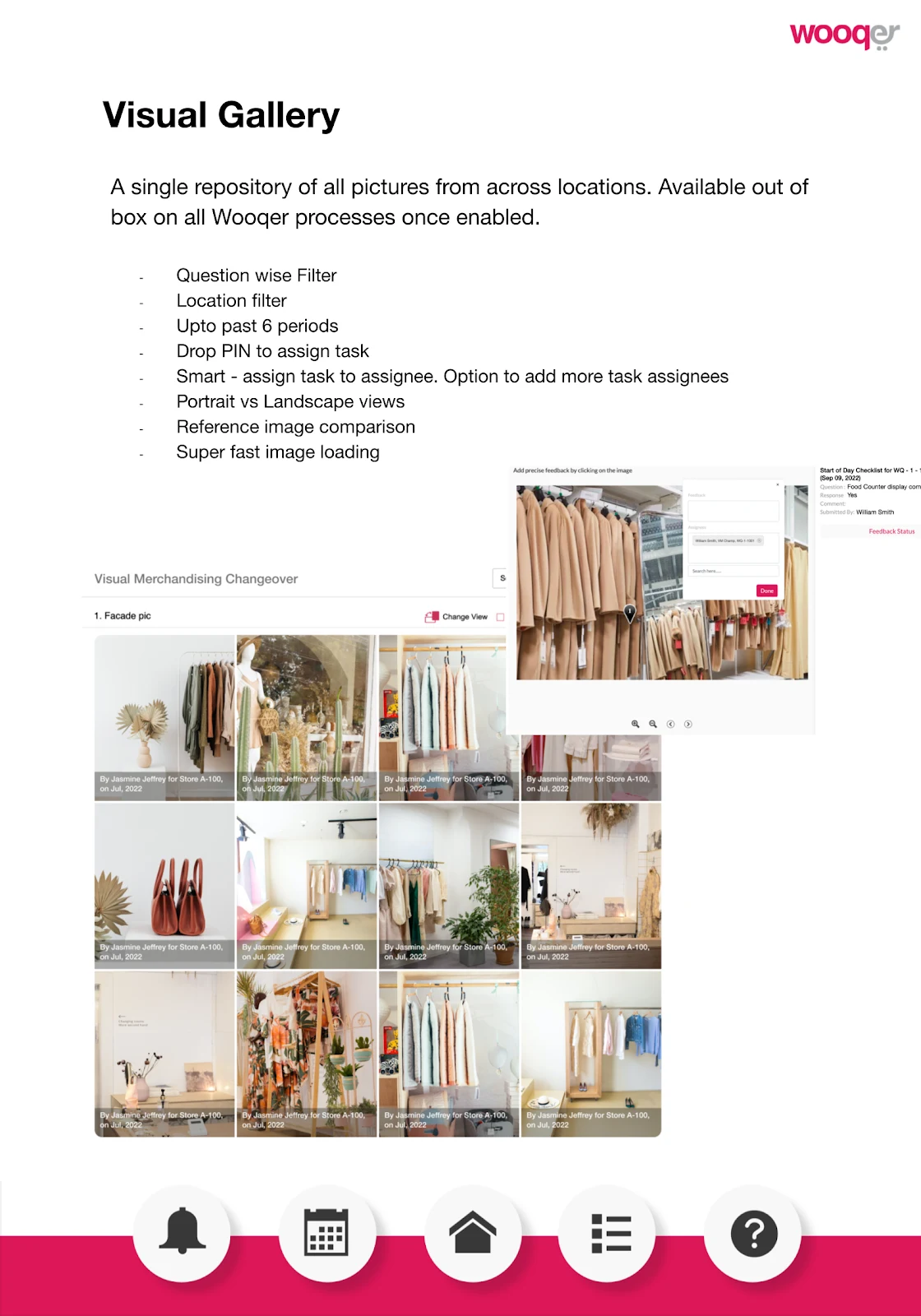
4. Track fixes and launch approval. In an audit WorkApp completed by each store, the team can choose which answers create follow-up tasks automatically. A failed checkout test, for example, can create a task for the pricing team. The person responsible and the deadline are chosen during setup.
A failed checkout test keeps the store On Hold. The pricing team corrects the offer, the store repeats the test and the campaign lead reviews the result before marking it Ready. Our retail task management platform guide covers how to evaluate that follow-up.
What changed for Skechers?
Before Wooqer, Skechers’ visual merchandising process took 30–40 days. Stores put photos into PowerPoint presentations and sent them for review. The central team collected the files and followed up by email.
With Wooqer, stores submitted photos directly. The central team could review them as they arrived and give feedback during setup. Skechers reported 70% faster rollout of visual merchandising changes.
Skechers’ result is about visual merchandising. In a promotion rollout, photo reviews give stores a chance to fix displays before launch. Stock, pricing and staff readiness still need separate checks.
Use the results to improve the next rollout
Record these results for each store, using the campaign’s launch and end times. The report also needs to show which stores have not sent their results.
| Measure | How to record it |
|---|---|
| Stores ready by launch | Stores marked Ready before launch ÷ participating stores × 100. |
| First display pass | Stores passing their first display review ÷ stores reviewed × 100. |
| Checkout test pass | Stores passing the required checkout tests ÷ stores tested × 100. |
| Time to fix | Hours from the first report until a manager checks the fix. |
| Closed on time | Stores with expired signs removed and the discount stopped by the agreed end time ÷ participating stores × 100. |
If stores keep receiving signs in the wrong size, check the artwork and printing instructions. If approvals are slow, check who is reviewing the work and how long they take to respond.
Run your next promotion in Wooqer
Bring a campaign brief and details of your different store types. See how your teams can share instructions, complete checks and fix problems in Wooqer.
Frequently asked questions
How far ahead should we start a promotion rollout?
Use 14 days as the starting point for this plan, then work back from the longest delivery or setup task. Existing stock and digital signs may need less preparation than new printing or fixtures. Leave time for a test setup and fixes.
Should every store use the same WorkApp?
Use the same offer rules and dates across participating stores. Change the setup checks to fit each store’s space, products and displays. Keep a record of who approved any local change.
What if stock or campaign materials arrive late?
If missing stock or materials stop a store from following the brief, keep it On Hold. Record the delivery date and any replacement approved by the campaign lead. When the replacement is ready, update the store’s instructions and repeat the affected checks before approving launch.
What should the checkout test include?
Try a purchase that should get the discount and one that should not. Test the rules for excluded products, minimum spend, member-only prices and combining discounts. Check the receipt or test result. Repeat the test after a pricing fix.
Who decides if a store is ready to launch?
The campaign lead or area manager named in the plan approves launch. Give that person a backup and a review deadline. Store managers send photos and check results. The pricing or IT team confirms any checkout fix. Record who approved the store and when.